Select your country to view prices and course dates.

x

Recent Searches
Category

Microsoft Copilot Courses

Category

Microsoft Power BI

Category

AI for Business

Category

Microsoft Excel

Category

Professional Development

Category

Microsoft Office 365

Category

Excel Specialist

Category

Microsoft Project

Category

R Programming

Category

Python

Category

SQL

Category

Power Apps

Category

SharePoint

Category

Power Automate

Category

Microsoft Teams

Category

Microsoft Visio

Category

Microsoft PowerPoint

Category

Microsoft Word

Category

Microsoft Outlook

Category

Adobe InDesign Courses

Category

Adobe Photoshop Courses

Category

Adobe Illustrator Courses

Category

Adobe Premiere Pro Training

Category

Adobe After Effects Training

Category

Adobe Acrobat Courses

Category

Adobe Captivate Training

Category

Adobe Animate Training

Category

HTML Courses

Category

WordPress

Category

Canva Courses

Category

Microsoft Access

Category

Webinars

Course

Copilot for M365

Course

Power BI Beginner

Course

ChatGPT Beginner

Course

Excel Beginner

Course

Achieving Leadership & Success

Course

Microsoft 365 Beginner

Course

Financial Modelling

Course

Project Beginner

Course

R Programming Beginner

Course

Python Beginner

Course

SQL Beginner

Course

Power Apps Beginner

Course

SharePoint Beginner

Course

Teams Essentials

Course

Visio Essentials

Course

PowerPoint Level 1

Course

Word Beginner

Course

Microsoft Outlook Beginner

Course

InDesign Lite

Course

Photoshop Training Intro

Course

Illustrator Training Intro

Course

Premiere Training Intro

Course

After Effects Training Intro

Course

Acrobat Essentials

Course

Captivate Training

Course

Animate Training Intro

Course

HTML Training Intro

Course

WordPress Essentials

Course

Canva Beginners

Course

Microsoft Access Essentials

Course

Copilot for Word

Course

Power BI Intermediate

Course

Excel Intermediate

Course

Microsoft 365 Intermediate

Course

Analysis and Dashboards

Course

Project Intermediate

Course

R Programming Intermediate

Course

Python Intermediate

Course

SQL Intermediate

Course

Power Apps Intermediate

Course

SharePoint Intermediate

Course

PowerPoint Level 2

Course

Word Intermediate

Course

InDesign Training Intro

Course

Photoshop Lite

Course

Illustrator Training Advanced

Course

Premiere Basics Training

Course

Acrobat Forms

Course

Canva Intermediate

Course

Microsoft Access Advanced

Course

Copilot for Excel

Course

Power BI Advanced

Course

Excel Advanced

Course

Microsoft 365 Advanced

Course

Excel VBA

Course

Project Advanced

Course

R Programming Advanced

Course

Python Advanced

Course

SQL Advanced

Course

Power Apps Advanced

Course

SharePoint Advanced (Site Owner)

Course

Word Advanced

Course

InDesign Training Advanced

Course

Photoshop Training Advanced

Course

Advanced Premiere Training

Course

Advanced After Effects Training

Course

Canva Advanced

Course

Copilot for PowerPoint

Course

Power BI DAX

Course

Excel Expert

Course

Machine Learning in R

Course

SharePoint Advanced (Document Governance)

Course

InDesign Interactivity Training

Course

Copilot for Outlook and Teams

Course

InDesign Accessibility Training

Course

Power Automate Beginner

Course

Power Automate Intermediate

Course

Microsoft Outlook Advanced

Course

AI Prompting Fundamentals

Course

Power Automate Advanced

Course

Excel Tables and Pivot Tables

Course

Data Transformation with Power Query

Course

Excel Macro Mastery

Course

Power BI Desktop Advanced Reporting

Course

AI for Business Leaders and Managers

Course

Data Visualisation with Power BI Desktop

Course

Anger Management & Negotiation Skills

Course

Assertiveness & Confidence

Course

Building Resilience

Course

Coaching and Mentoring

Course

Communications

Course

Communications & Quality Client Service Training

Course

Critical Thinking and Problem Solving

Course

Cultural Diversity in the Workplace

Course

Embracing Change

Course

Growing Emotional Intelligence

Course

Minute Taking

Course

Persuasion and Negotiation Skills

Course

Presentation Skills and Public Speaking

Course

Practical Project Management

Course

Respect, Equity and Diversity (RED)

Course

Resumé Writing and Interview Skills

Course

Stress Management

Course

Team Leadership, Management and Development

Course

Time Management Intensive

Course

Train the Trainer

Course

Write Effective Business Documents

Course

Dealing with Difficult People

Course

Managing Difficult Conversations

Course

Managing the Virtual Workplace

How to create a project Collab space in SharePoint

Hannah Pearson | Oct 28, 2021
sharepoint training courses nexacu

SharePoint is a useful tool in your organisation’s tool kit. It’s user-friendly interface makes creating efficient and purposeful sites easy.

The first step to creating a collaboration space in SharePoint is identifying why you need it and what you want to get from it. By having clear goals, how you structure your space and what features you include will be easy decisions. It is also important to get input from the people who will use the sites; they will have a unique perspective on how the space should function.

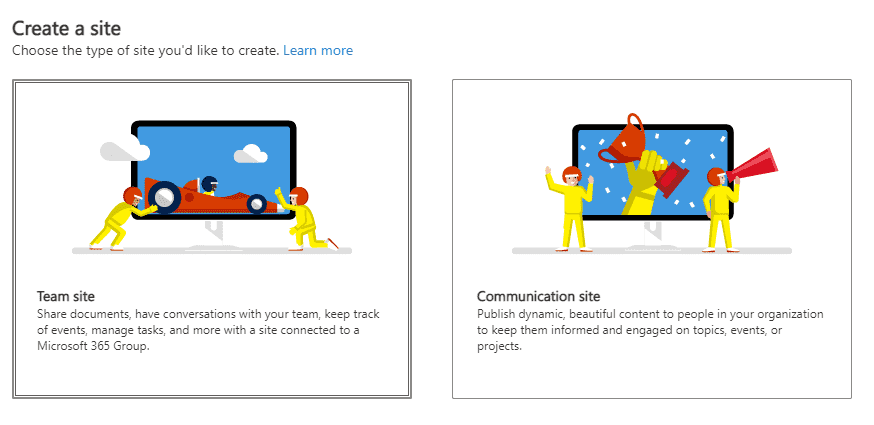
There are two kinds of SharePoint sites with different functionalities. A communication site is used to publish content to keep people within your organisation up to date. Today we will focus on building a Team site. These can be used to share documents, have conversations with your team, keep track of events, and more through a site connected to a Microsoft 365 group.

Use the SharePoint look book to get inspiration on how to format your space, in line with the goals and functionality you identified from your team. Things to consider include how to streamline communication, access to important files, and whether integration with other Office 365 programs would be beneficial. To link up other Office 365 applications, you may need to check that your organisation has the relevant licences and permissions.

To create the space, open SharePoint. In the top left hand corner, there will be a ‘create site’ button.
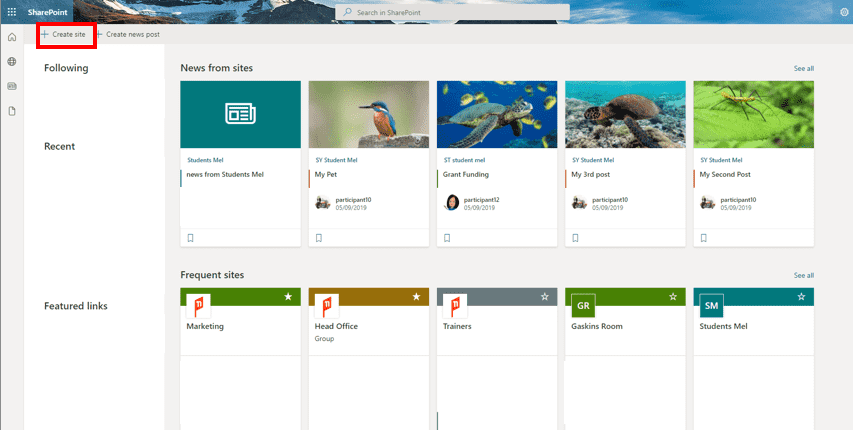
SharePoint training collaboration site

Click this to bring up an option between a team site and a communication site. To create a collaboration space, click ‘team site’.
SharePoint training collaboration site

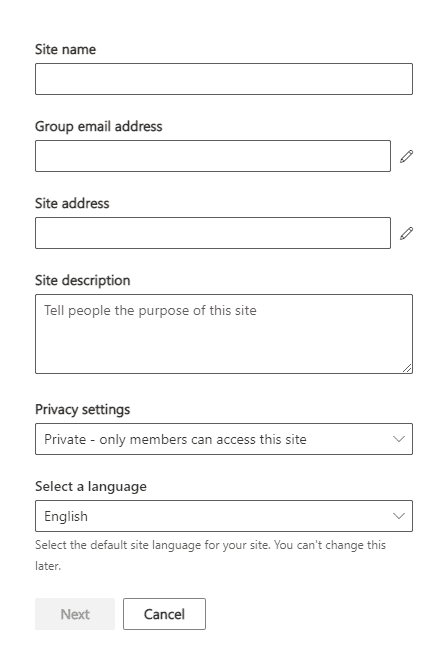
Once you start typing a site name, 5 other fields will appear.
SharePoint training collaboration site

Group email address will allow you to send an email only to those with permissions to view the site. The site address is related to your organisation's SharePoint space. The site description is optional but is a good way to let those within your organisation know what your site is for. Your choice of privacy settings will affect who can see your site, whether that is everyone in your organisation or just those chosen. The ‘select a language’ field is very important as it cannot be changed later. Once you have filled these out, click next.
SharePoint training collaboration site

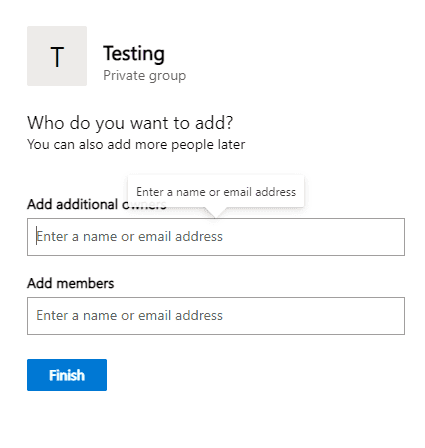
On this page you can add additional owners, who will automatically have permissions to edit the site. Importantly if you have selected the more restricted privacy setting, you can add members who can view your site. This can be changed later as needed.

Once you click finish, your site will be created! You can customise your site with web parts, which are essentially SharePoint’s building blocks. There are many kinds of web parts, each of which have a specific function. Different web parts include the ability to embed a YouTube video or Bing map, integrate a Power BI report or Microsoft planner, and many other functions. For a full list of web parts see here.

In choosing web parts and building your site, remember the function of the site. For further SharePoint training and to take your site to the next level, attend our SharePoint courses. See available dates here.


Trusted Globally by Leading Organisations

At Nexacu, we are proud to be the trusted training partner for hundreds of leading organisations across Australia, New Zealand, and around the world. From government agencies to multinational corporations, we help teams build practical skills and achieve real outcomes through expert-led training.

  • 400+ companies rely on Nexacu for workforce development
  • Trusted by government agencies at all levels
  • Delivering training across 9 countries and growing

Why Nexacu? 

step by step courseware

Step by Step Courseware

Custom workbook included with a step by step exercises

Facility Image 2
Facility Image 3
Facility Image 1

Interactive real time training

Interactive, Real-Time Training

Learn with expert instructors, wherever you are

Trusted by Business

Trusted by Business

Procured by Government

Procured by Goverment

Reviews Not Found

Valued by Individuals